
Step 1:
Copy the email signature template: Highlight the sample signature in the template, then click the Edit menu, and then Copy (or Command ⌘+C on your keyboard). There are three options below. A reminder that logo files (or any photo) are often removed by email firewalls or, worse, blocked. If you do not wish to include the logo file, we have prepared a version without it.

First Last
Job Title
Lumin Digital
XXX.XXX.XXXX | Time Zone
lumindigital.com



Step 2:
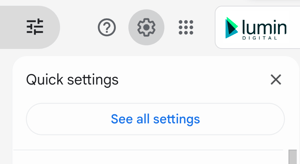
After copying, open Gmail, go to your Gmail settings in the top right corner, and click on See all settings button.
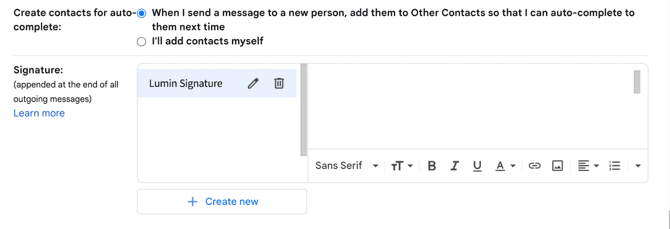
Scroll down to the section for Signature, click on +Create New button, and paste the email signature template.
Step 3
Edit the email signature template with your contact information.
Step 4
Update your signature default to your newly created email signature for New Email Use and Reply/Forward Use.
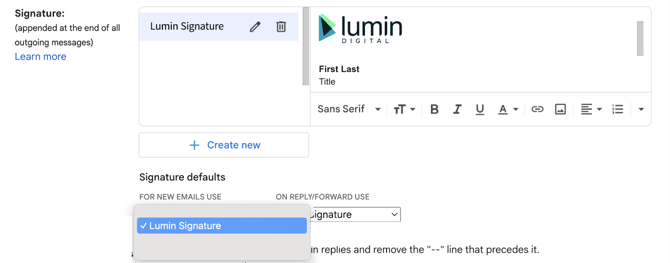
Select Save Changes at the end of the form. You’re all set to use your branded Lumin Digital email signature. For questions, please reach out to Marketing’s public Slack channel.
First Last
Job Title
Lumin Digital
XXX.XXX.XXXX | Time Zone
lumindigital.com